March 2013
How to Use "LazyLoad" to Speed Up WordPress
A website’s loading speed matters a lot. It apparently affects SEO, and above all, a site that runs smoothly feels good to use. Conversely, I don’t want to stay long on a slow site.
This blog uses images at double size to support Retina displays, so it tends to get heavy. A travel post can use 20 images, and then it takes a very long time to load.
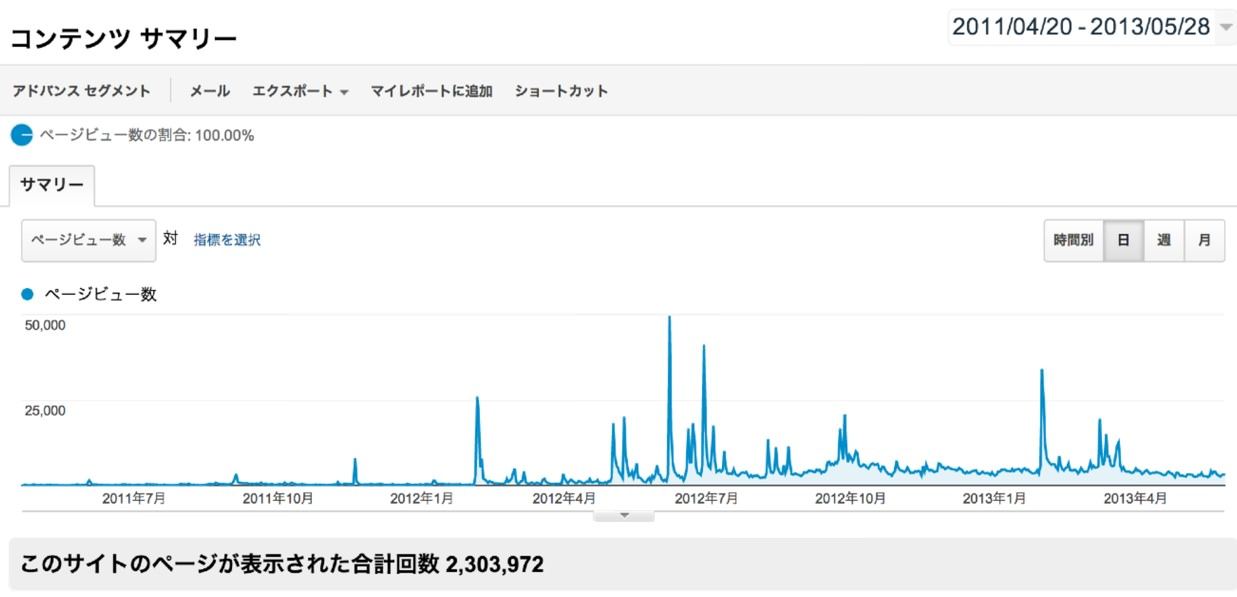
I tried various things like image compression, but it was still heavy and I wondered what to do… and then I found “LazyLoad”. It loads images as you scroll, so no matter how many dozens of photos are lined up, the initial load of the site finishes quite quickly. With this plugin alone, I improved the display speed by about 3 seconds. Well-known sites like Rocketnews use it too.
However, if you just install it as is, the screen flickers every time you scroll, which isn’t great, so I’ll explain how to delay loading while avoiding the flicker. At best, it takes about a minute.
How to use LazyLoad (time required: about 1 to 5 minutes)
-
On the plugins screen, search for “Lazy Load”, then install and activate it.
-
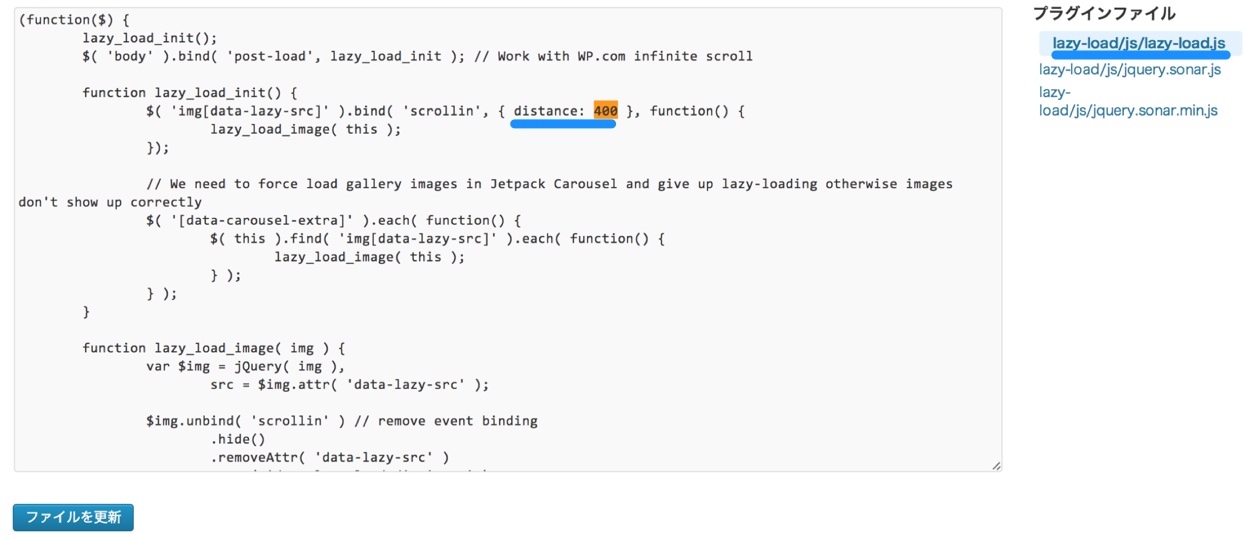
In the plugin editor, select Lazyload.
-
As in the image above, select Lazy-load/js/lazy-load.js and set distance: XX to somewhere between 400 and 600. I recommend 400.
That’s all.
At “200”, it loads the 200px at the bottom of the screen, so if you scroll a little fast, the screen flickers as things appear. If you give it more leeway, that gets better. After trying various values, I think around 400 works best.
So I wrote this for people struggling with WordPress display speed and people who use lots of images. If that’s you, please give it a try.
▼ I wrote a guide to building WordPress that even beginners can follow.
https://www.aokiu.com/2012/07/03/wordpress/For Those Who Want to Get Serious About Blogging! How Anyone Can Easily Install WordPress | Hibilog | A Blog About Traveling the World, Daily Life and Reflections