July 2012
How to Easily Change the Font Size and Typeface in WordPress
In WordPress, you can easily change the font and text size. It involves touching HTML and CSS, but with this method you can do it without any special knowledge. It often happens that you like the design and atmosphere of a foreign theme but the text size and font are a little off… I wrote this for people who want to change them but don’t have the knowledge. Before you start, I recommend backing up your files.
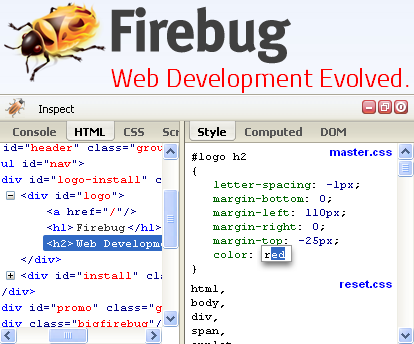
The tool we’ll use is called Firebug. Firebug is an essential tool for working on the web, and even beginners can use it easily. It exists as an extension for both Firefox and Chrome, so please install it first. In this article I’ll use the Chrome extension as the example.

- Once installed, a bug icon like this appears. First, click the bug.
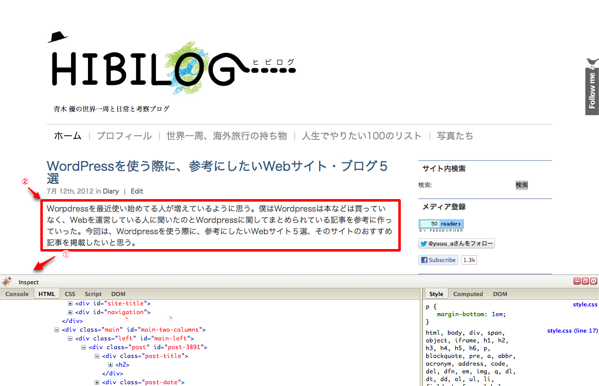
- As a reference, I’ll use my own blog. First click Inspect at (1), then click the spot at (2).

- You’ll get something like this.
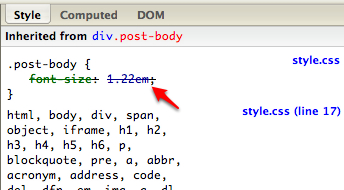
- Go to the left side of the Firebug box and you’ll find the Font-size of Post-body. Click the 1.22em there.
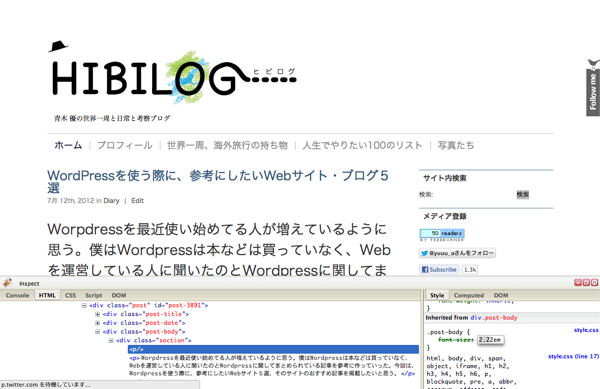
- When you click it, you’ll see that the number can be changed. As you change the number, the change is reflected on the screen. Find a size you like and make a note of the value.
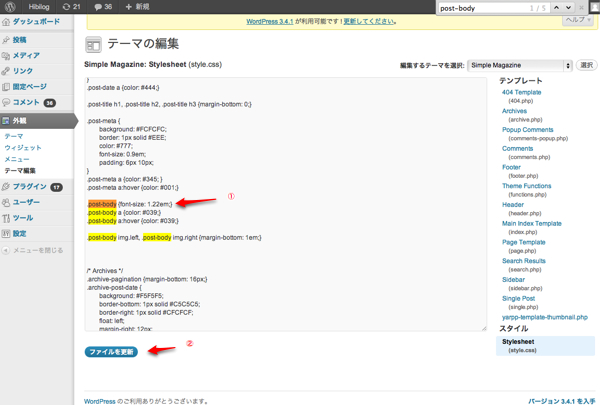
- Firebug changes things like fonts in the browser, but it doesn’t change the actual settings. To make the change permanent, log in to WordPress, go to Appearance → Edit Themes, and enter the number you like into the Stylesheet. Finally, press Update File and the font change is complete.
Changing the font type or text color works the same way: try it in Firebug, then change it in the stylesheet. You can also change the width of the main article text and try many other things.
That was how to change the text size and font in WordPress. Once you can tweak fonts, playing with WordPress becomes even more fun. Please give it a try.
▼ I’ve collected some carefully selected WordPress themes.
https://www.aokiu.com/2012/07/04/wordpress-theme/Are These Really Free?!?! 33 WordPress Themes of Overwhelming Quality | Hibilog
This time I’m picking 33 WordPress themes of such high quality that you’ll wonder whether they’re really free. I tried to include templates that aren’t covered elsewhere. …