June 2012
How to Use ShareHTML, the Easy Way for Anyone to Create Links with Images
https://www.aokiu.com/2012/06/28/simfree/
How to Unlock an iPhone 4 Without Jailbreaking and Enable Tethering | Hibilog
This time I’d like to write about how to unlock an iPhone 4 without jailbreaking it. I’ll say upfront that if you try this, you do so at your own risk. You’ll need the following three things: ・iPhone …
The link above was made with ShareHTML. ShareHTML is a tool created by @hiro45jp that makes it easy to create links with images. Since I started using it, writing blog posts has gotten much easier.
Once you’ve registered with ShareHTML, you can create a link like this in just a few seconds. However, even after looking at the official site, I couldn’t figure out how to use it, and it took me over an hour to create a link. So in this post, I’d like to explain it so that anyone can set it up easily.
How to set up ShareHTML ▼
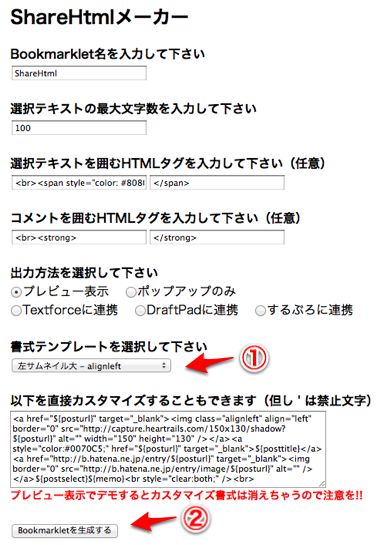
- Go to “ShareHTML,” make the settings in ① and click ② to generate the bookmarklet.
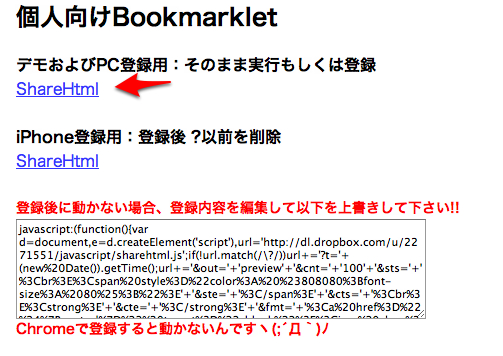
- A screen like this will appear. Then take the part marked with the red arrow
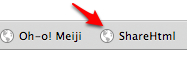
- and move it to your bookmarks bar like this. Drag and drop.
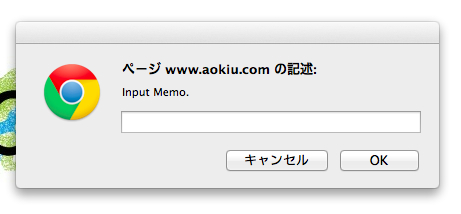
- Next, open the page you want to link to and click the ShareHTML bookmark. A popup like this will appear; press OK.
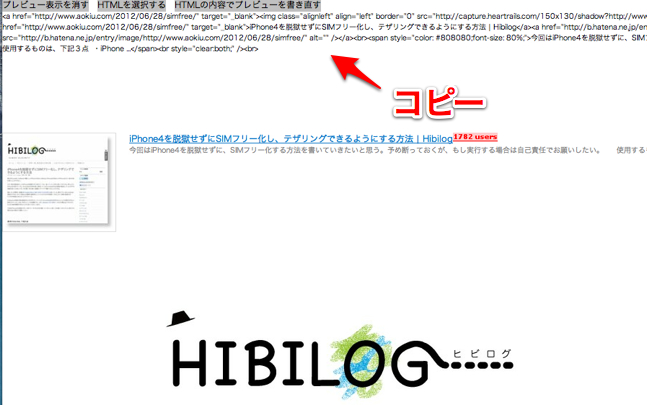
- After you press OK, a tag like the one above appears at the top of the page. Copy it and paste it into the source where you want it, and you’re done. Once you’ve created the bookmark button, you can make the link with an image I showed at the very beginning in a few seconds.
Also, if you want to include a snippet of the article’s content, as in the link at the very top, just select the text and click the “ShareHTML” bookmarklet, and it’s automatically inserted into the source. Then just paste the source in the same way.
It may be confusing at first, but once you get used to it, you really can create an article link in a few seconds. Recommended for bloggers.
.