July 2012
For Anyone Who Wants to Start Blogging Seriously! An Easy Way for Anyone to Install WordPress

Until now, I kept making blogs and deleting them. Ameblo, Livedoor, Blogger, and a few others whose names I’ve forgotten. None of them lasted. I’d push hard for the first three days, and before I knew it I’d abandoned it. I wonder if there are quite a few people like that.
Recently, it seems to me that more people are writing blogs than before, and that blogs are becoming more important. Precisely because social media has spread, having a blog as both a medium and a body of content is quite powerful. In fact, I’ve gained all kinds of benefits from having this blog. Twitter alone is a waste.
My blog uses something called WordPress. WordPress is a customizable website platform used by many bloggers. It has many strengths and benefits, but the initial setup is a high hurdle, and in fact it took me more than a week to build my first one.
But these days, building a WordPress blog takes less than 20 minutes. If you follow a certain procedure, you can get a server and a domain and install WordPress easily. (Though I spent over 100 hours learning that pattern.) At first you don’t need any specialized knowledge like HTML or CSS, and you can make your own original site. Recently, friends have also started asking me, “How do you install WordPress?” Here, I’d like to explain a way to set up WordPress that anyone can do easily. At the end, I also wrote about my thoughts on spending money on a blog.
1. The Appeal and Benefits of WordPress
First, let me write about the appeal and benefits of WordPress. As I wrote at the start, the strengths of WordPress are that anyone can make a polished, official-looking website, that it has plenty of designs, and that it’s easy to customize.
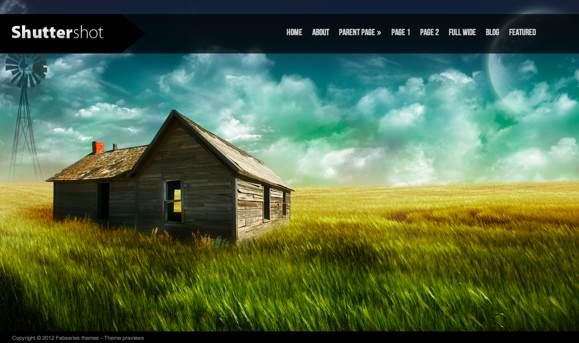
My blog also uses WordPress. Many famous bloggers use it, and if you look closely at startup websites, it’s not unusual to find they’re built with WordPress. Here are famous websites built with WordPress. There’s no doubt that content is the most important thing in a blog, but when the design is good, people read the content too, and it also motivates the person writing to keep going.
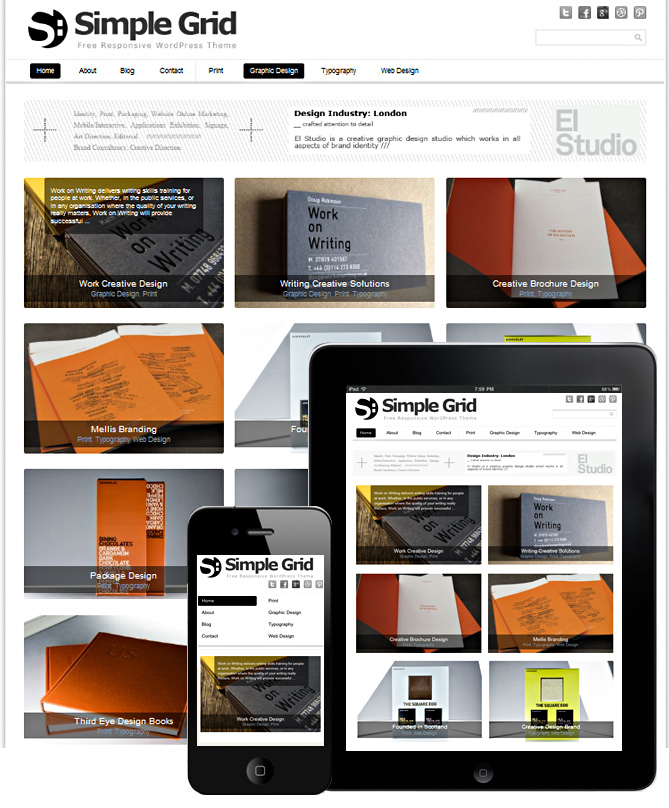
These are also made with WordPress. And the template above is free to use.
Another good thing about WordPress is that you can change things that are hard to change on other blog services, such as fonts and fine design details. For example, you can remove unnecessary lines or change the text size from 12 px to 12.5 px. You can also make the text slightly gray instead of pure black so the writing looks softer. In short, it’s easy to customize. WordPress is also known for having many designs that make you ask, “Is this really free to use?” And once you learn how to build it, anyone can do it easily.
2. Renting a Server and Installing WordPress
Now, let’s get into setting up WordPress. First, you need to rent a server. Here, I’ll explain how to set up HETEML. HETEML has a tool that makes installing WordPress easy, and the server has plenty of storage, so you don’t need to worry about file sizes. It can also handle quite a lot of traffic in a day, and the server is fast. Being able to freely use over 100 GB is also a big plus. If you rent just one, you can install several WordPress sites on it.
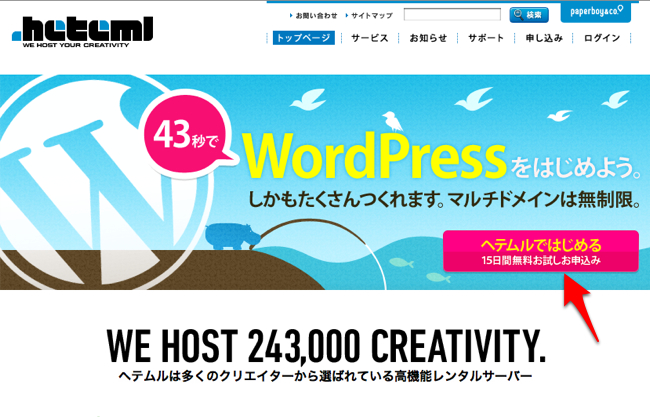
Step 1. Go to HETEML, click the button with the red arrow, then click the “Apply here” button.
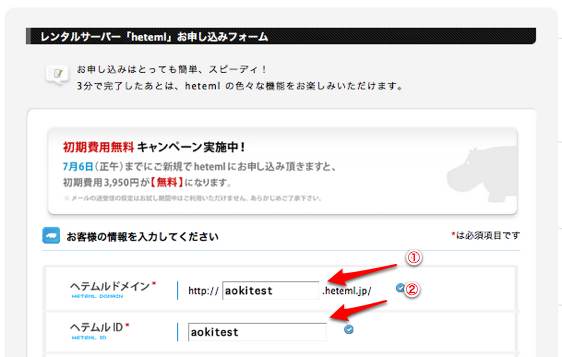
Step 2. Enter the ID you want in ① and ②.
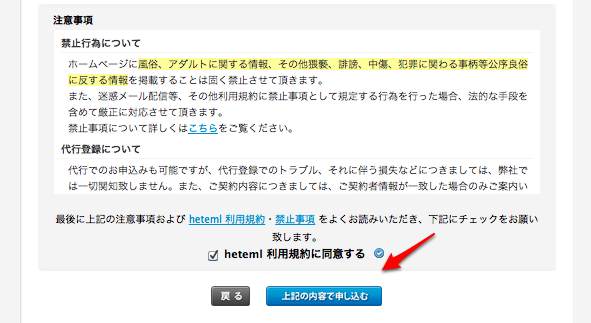
Step 4. After entering your address, phone number and so on, click “Apply with the above details.” HETEML will then send a message to the address you registered, so click the URL in it.
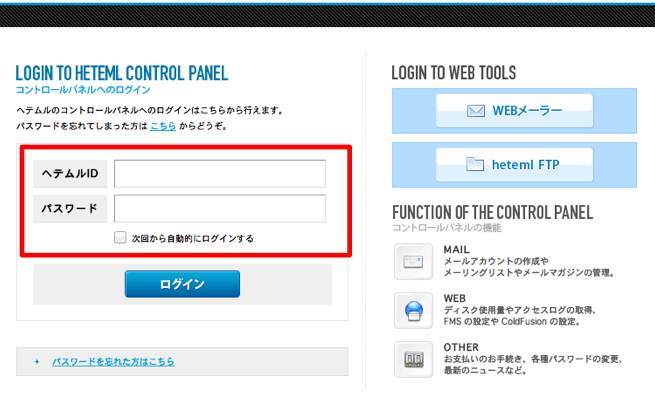
Step 5. On the HETEML login screen, enter your registered ID and password.
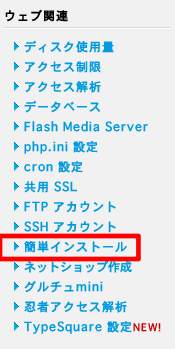
Step 6. Once you’re on the login screen, click “Easy Install” in the sidebar.
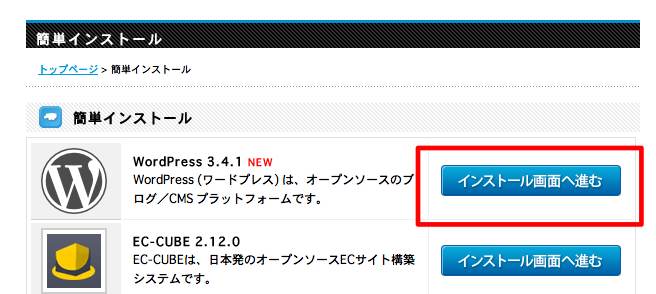
Step 6. Click “Go to the installation screen.”
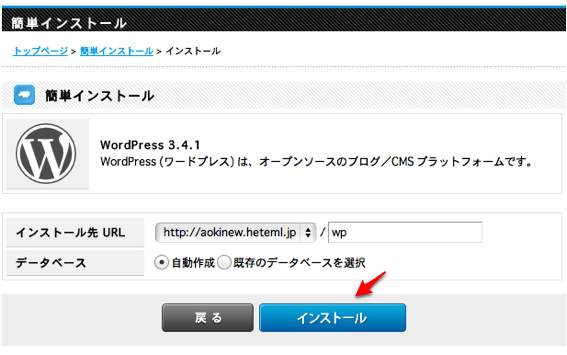
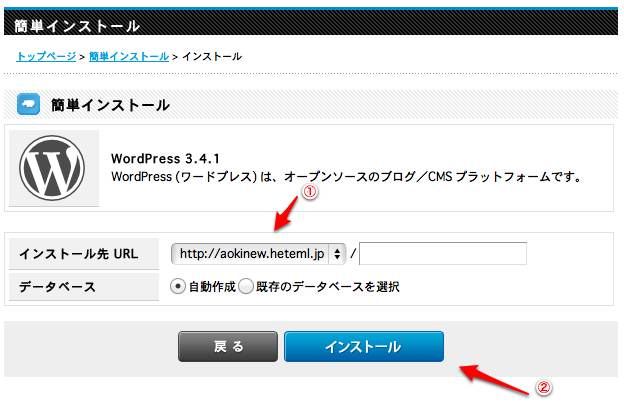
Step 7. Make the settings as above and click Install. If you want to install without the keyword “wp,” see here.
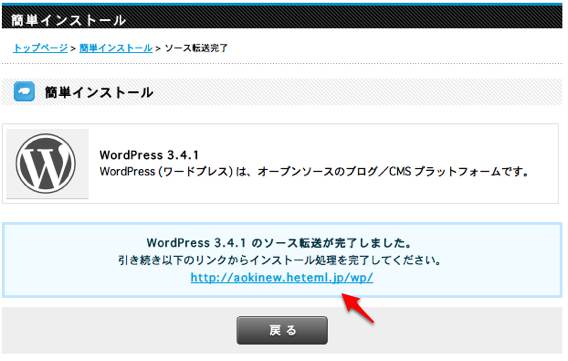
Step 8. Click the URL marked with the red arrow.
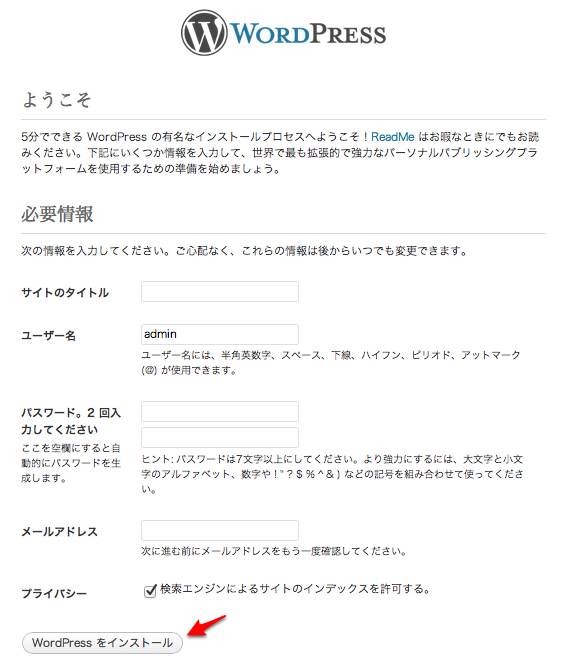
Step 9. When you reach this screen, you’re almost there. Fill in the blanks above and click “Install WordPress.” *If this screen doesn’t appear, please wait about 30 minutes to an hour and then access it again.
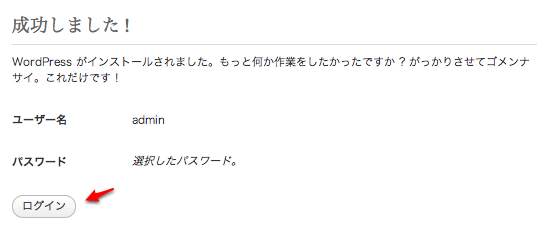
Step 10. Click Login.
That completes getting a server and installing WordPress.
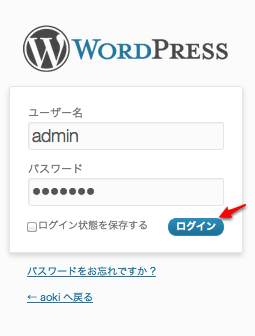
Also, to open the WordPress login screen, you can log in at http://your-domain.hetemel.jp**/wp-login.**
For detailed instructions on using WordPress, there’s a manual on the screen after you log in, so refer to that.
**3. **Registering a Domain
Next, you get a domain. The benefit of using your own domain is that it gives a stronger sense of originality. For example, I wanted to use my own name, so I chose aokiu.com. People in the know can tell at a glance that you’re paying for it, and people can remember your site by its domain. I think it’s best to choose a domain with a number of characters you can remember.
You get a domain at Onamae.com.
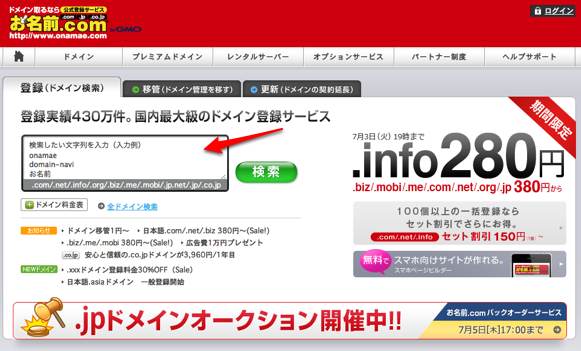
Step 1. Go to Onamae.com and enter the domain name you want in the part marked with the red arrow.
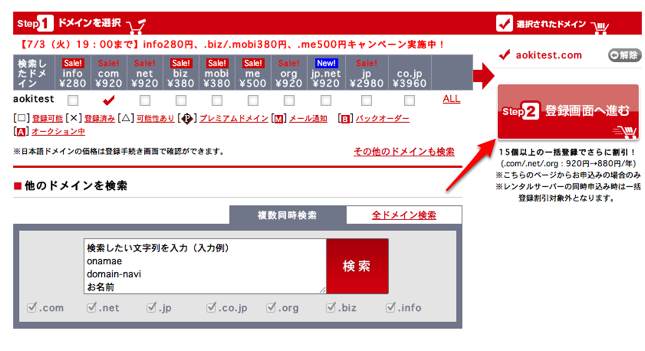
Step 2. I think a .com domain is a good choice to start with. Also, when you create a new site, it’s best to get a separate domain. Proceed to the registration screen.
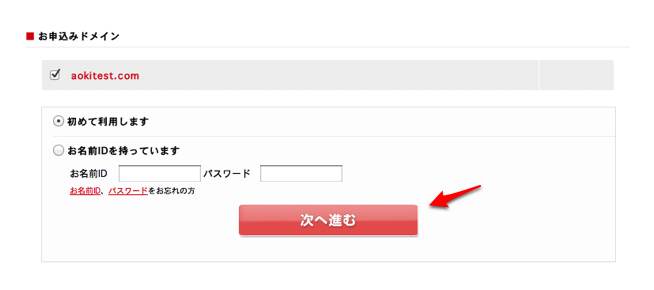
Step 3. If it’s your first time, click “Next.” Unlike installing WordPress, from here on you can get it done easily just by following the flow. For the rest, please refer to this page.
5. Domain Settings
You need to connect the server and the domain you got. Domain settings are done as follows.
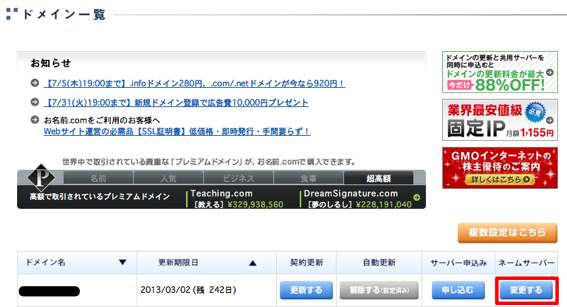
Step 1. Log in to Onamae.com, open the domain list, and click “Change” in the red brackets.
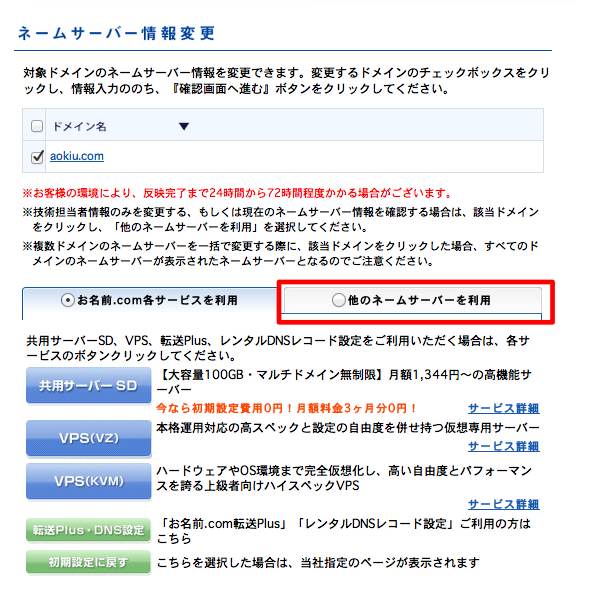
Step 2. Click the “Change to other nameservers” tab.
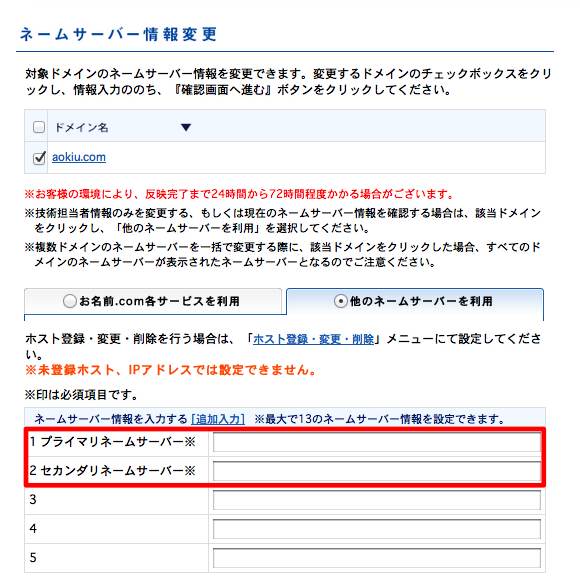
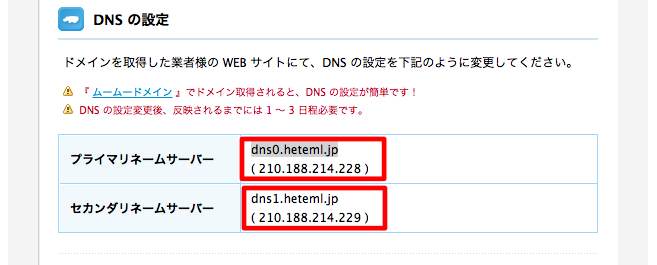
Step 3. In the primary nameserver field above, enter dns0.heteml.jp, and in the secondary nameserver field, enter dns1.heteml.jp.
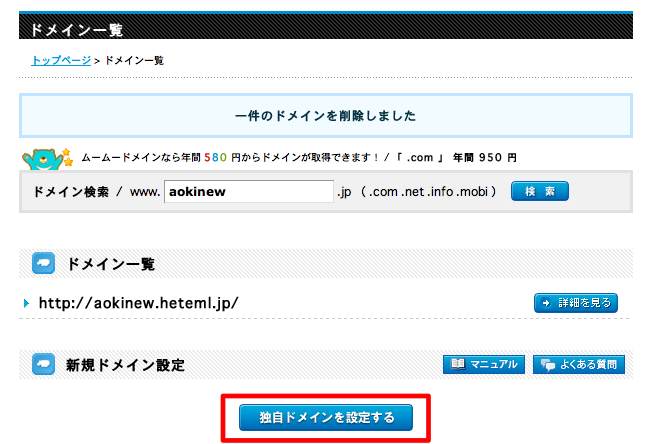
Step 4. Next, go to HETEML and click “Custom domain settings.”
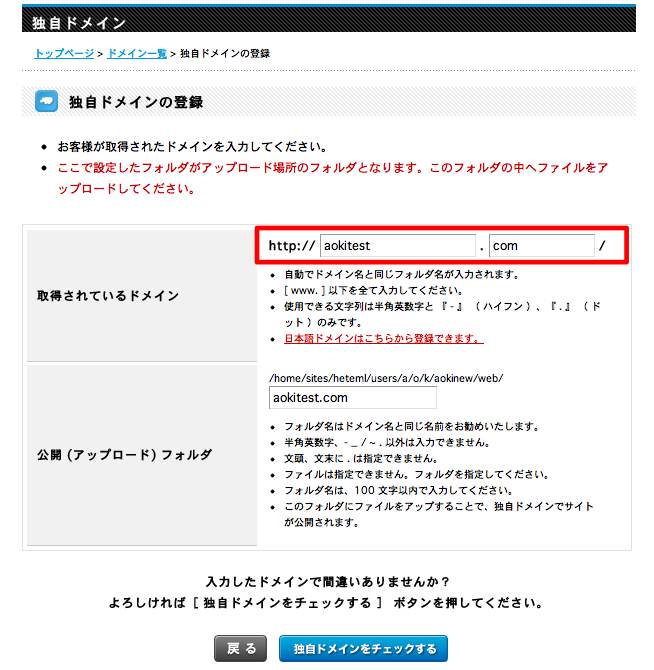
Step 5. In the brackets, enter the domain you got from Onamae.com and click “Check custom domain.” That completes the domain settings. If you run the first Easy Install again for the domain you registered, you can create a WordPress site on your own domain. It can take up to a day for the domain to take effect, so in the meantime, let’s go look for a site design (template).
6. Finding a Site Design (Template)
WordPress has a truly large number of designs (templates). I judge a design by two points: whether I instinctively want to use it, and whether it suits what I’m going to write. I wanted to show my travel photos well, so I looked for a WordPress template with a simple design, a white background and wide article columns. What I found was something called Simple Magazine. I use that template as a base and tinker with it from time to time.
You can install a theme by clicking “Appearance” → “Themes” → “Add New” → “Upload” in the sidebar.
https://www.aokiu.com/2012/07/04/wordpress-theme/This Is Free?!?! 33 WordPress Themes of Overwhelmingly High Quality | Hibilog
Last time I wrote about how to install WordPress in a way anyone can do easily. As I wrote in that entry, there are truly a lot of WordPress themes. And most of them are free to use. …
I’ve included a roundup of overseas template sites above, so please take a look. When I look for templates, I always search “Wordpress theme best.” You can also search “Wordpress テンプレート ベスト” in Japanese, but I want to overlap with other people as little as possible, and overseas templates are overwhelmingly more varied and cooler. Above all, there are lots lying around that make you ask, “Is this really free?”
Also, when I want to find the latest templates, I search “Wordpress theme best 2012.” If you want a portfolio-type design, you can search “Portfolio WordPress theme” and so on. Including the keywords you want in your search makes it easier to get the design you’re looking for.
Searching for a design is quite a lot of work, but the joy of finding the theme you were looking for is great. I’d really recommend finding a design that suits you.
7. Installing Plugins
Plugins extend WordPress’s functionality. For example, the Twitter “Follow Me” icon on the right side of this blog, and the Tweet and Like buttons at the bottom of the page, are also plugins.
To install a plugin, click “Plugins” → “Add New” in the sidebar, search for the plugin, and activate the one you want, and you’re done. Below, I’ve listed the plugins I use, so please refer to them if you like.
▼ 4 Plugins to Install First
TinyMCE Advanced*Enhance the Visual Editor - Japanese Version Available – Japanese Plugin Versions, Plugin-Related | Lovelog+* – WordPress Reference
TinyMCE Advanced is a recommended plugin for those who want to enhance WordPress’s visual editor. I think it’s an essential plugin for corporate sites and the like. …
http://www.amamoba.com/wordpress/bookmark-plugin.htmlHow to Use “WP Social Bookmarking Light,” an All-Purpose Bookmark Button WordPress Plugin! | Amamoba
Until recently I was using a blog widget for the bookmark button, but it never felt quite right. I had been looking for a WordPress plugin for a while, but couldn’t find one I was happy with. …
http://mb923.net/2011/05/24/wordpress-fasterinsert/WordPress Plugin to Insert Lots of Images at Once: Faster Insert | Easygoing Uonuma Person 2008
When I write diaries about climbing mountains, I put in a huge number of images, so I use a plugin called Faster Insert. :sd: …
http://memocarilog.info/wordpress/wpplugin/3938I Tried Installing DB Cache Reloaded Fix, a WordPress Speed-Up Plugin | memocarilog
There are lots of speed-up plugins and I couldn’t decide which to install, but the plugin’s distribution page said it seemed faster than WP Super Cache, so I installed DB Cache Reloaded Fix …
I also use Broken Link Checker, DB Reloaded Cache, Head Cleaner, All in One SEO Pack, Google Analytics, WP-OGP, WP Twitter Badge, WP Touch, Page Navi, XML Sitemap, Ktai Style, WP Hyper Response, WP Twitter Sidebar and others.
On Spending Money on a Blog
I’m in favor of spending money on a blog. I think what you gain precisely because you spend money on a blog is significant. I pay more than 10,000 yen a year to run this blog, but I’ve received dozens of times that in benefits. Both in terms of people and in terms of money.
Above all, by paying, you try to give value to it yourself. The big thing is that you become more proactive about creating. Even when writing a single entry, you imagine the people who’ll read it, think about the layout, simplify the wording, think about the logo, shift something 1 px to the right, add ads and think about monetizing, and so on, trying and retrying. Each task is modest, but it’s fun, and the experience and successes there are definitely put to use in my daily life and work.
People say it’s the age of the individual now, and I think the minimum essential skill in that age is the ability to write. In other words, the power to communicate to people. I feel that blogging is something anyone can easily use to train that. From input to output to PR, you have to do everything yourself. Because you spend money on it, you can see many things. I think that feeling isn’t something you can get from a free blog, and I’d like many people to know about it.
That was a detailed explanation of how to set up WordPress, plus a little extra. I’d be happy if this entry helps those who want to start blogging seriously and start WordPress. I’m not saying Ameba or Livedoor blogs are bad, but they have many restrictions and a lot of ads. When you post on those free blogs, the people who benefit most are the people running the service.
If you want to start blogging seriously, why not give WordPress a try? With so many social tools out there now, I think having your own website or blog is like owning an asset. How well you present that asset and how you arrange it in your own way is quite important, and for that, I recommend WordPress.
▼ One of the reasons I write this blog.
https://www.aokiu.com/2012/06/26/atarimae/On Putting Out My “Obvious” Things on the Blog | Hibilog
When I talk about travel, I’m often asked, “How do you buy tickets? How do you find a place to stay?” For a moment I think, “Come on, that’s obvious,” but I was the same at first. When I went on my first solo trip abroad, I too …
▼ WordPress-Related Entries
https://www.aokiu.com/2012/07/11/wordpress-web/11 Famous Websites Built with WordPress | Hibilog
Many people read my recently updated entry on installing WordPress, and I heard from people who actually started with WordPress. It’s hard at first, I think, but please do make your very own blog or website …
https://www.aokiu.com/2012/07/13/wordpress-font/How to Easily Change WordPress Text Size and Fonts | Hibilog
In WordPress you can easily change the font and size of text. You’ll need to touch HTML and CSS, but with this method it’s possible even without any special knowledge. Often I see sites abroad whose design and atmosphere I like, but the text size …
https://www.aokiu.com/2012/07/06/heteml/What to Do When Your Site Doesn’t Appear After HETEML’s WordPress Easy Install | Hibilog
If you install WordPress on HETEML as above, the site doesn’t display. I’d like to write about what to do in that case. …
.